The menu bar
The menu bar is the thin rail along the edge of the window. It is how you open everything, and it is yours to arrange: the edge it sits on, what goes on it, in which order, under which icon.
Put it where you want it
Settings → Appearance → Menu bar.
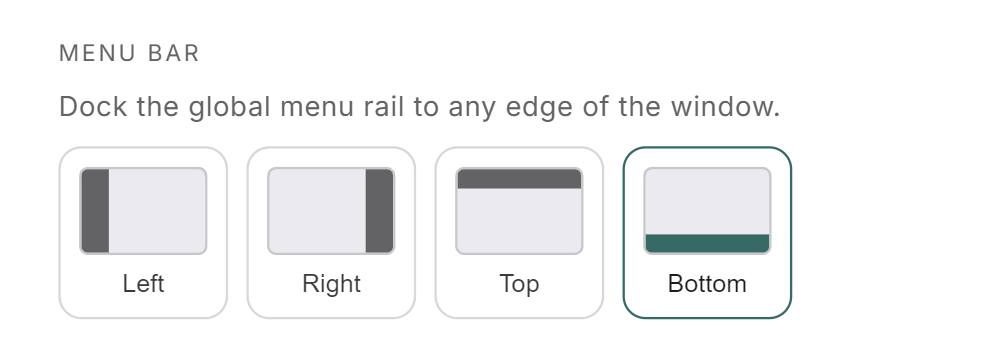
Left and right give you a column, top and bottom give you a row. The whole shell reflows around it, and the choice follows you to the next launch.
Fold it away
The last button on the rail collapses it. The bar slides out through its own edge and hands its space back to the canvas. Push your mouse against that edge and it comes back on its own, then leaves again when you move away.
Maximizing a widget folds the rail too, so the window is truly full. That one is temporary: unmaximize, and the rail returns to whatever you had chosen.
What sits on it
Twelve entries out of the box, in this order: Wallet, Chat, Vault, MnemoHub, Notes, Todo Backlog, Neural Map, Gallery, Web Capture, Dream State, Logs, Diagnostics. The money first, then the three surfaces you touch every day, then memory, then the two tools you open when something looks wrong.
Three behaviours worth knowing:
- A small dot on the top right of an icon means that widget is open on the canvas right now.
- Chat clicked while a chat is already open spawns a second chat rather than fronting the first one.
- Web Capture opens a real window of its own, outside the canvas. See web capture.
Rearranging
Drag any icon along the rail. An accent line shows the slot it will drop into, and the order is saved as soon as you let go.
Folders
Right-click an empty part of the rail and you get two things: the list of widgets you have removed and can add back, and New folder. Type a name, pick one of the icons, create. The folder lands at the end of the rail, empty.
- Fill it
Drag icons onto the folder. To take one back out, drag it from the folder onto the rail.
- Open it
Click the folder. A small panel lists what is inside, and you can reorder those rows by dragging them too.
- Rename, restyle, delete it
Right-click the folder: Rename, Customize, Delete folder. Delete asks a second time before it acts.
A folder you never gave an icon to draws the first four icons it holds as a 2×2 preview, so you can tell it apart. And it wears a number whenever something inside it is open.
Deleting a folder keeps what is in it: the icons slide back onto the rail, in their order, at the folder's own place.
Folders hold widgets and apps. They do not hold other folders.
Customize an icon
Right-click any icon on the rail:
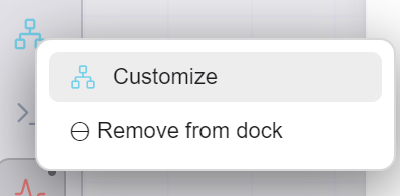
Customize opens the picker:
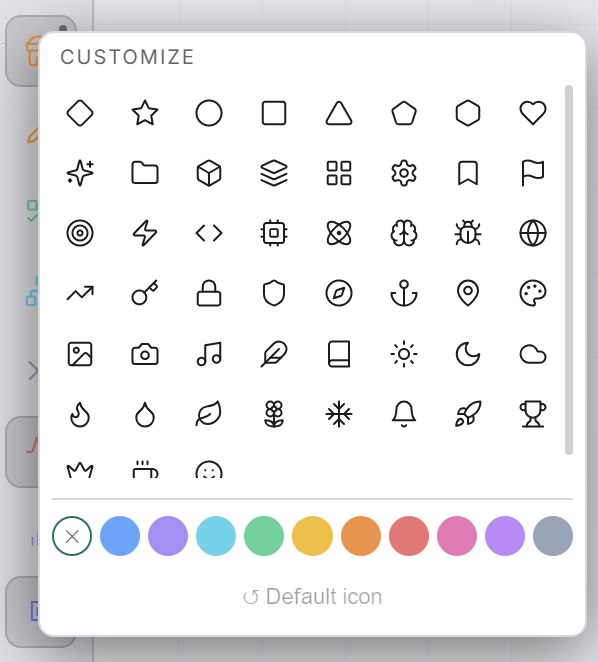
Fifty-one icons and ten colors. The crossed-out circle at the head of the color row clears the color and lets the icon go back to its own. Default icon, at the bottom, undoes both at once, and it stays greyed out until you have actually changed something.
Everything applies the moment you click, and the panel stays open so you can try a few. Press Esc or click elsewhere when you are happy.
One exception: a cartridge that ships its own artwork keeps it untinted. Its author drew it, so the colors leave it alone.
Remove from dock, and put it back
Remove from dock takes the icon off the rail. That is all it does: nothing is uninstalled, nothing is deleted, and an open widget stays open. It also holds: once you have removed something, the app never quietly puts it back.
To bring a widget back, right-click an empty part of the rail and pick it from Add a widget. It returns to its own place in the original order rather than to the end. A cartridge comes back from MnemoHub instead, since it was never part of the built-in list.
Reset the dock, at the bottom of that same menu, restores the original set of icons. It asks twice, and it only touches the rail: your apps and your memory are untouched.
Cartridges on the rail
An app installed from MnemoHub never adds itself. You pin it, from its card, with Pin to dock.
Some apps can show themselves two ways: sitting on the canvas as a widget, or in a separate window of their own. For those, the card offers two buttons instead of one, Pin to dock (canvas) and Pin to dock (external window). What you pick there is what a click on the icon will do.
To change your mind, right-click that icon and use the Opens as section. And to open the app the other way just once, without touching the setting, the same menu carries Open in a window (once) when the app is set to the canvas, and Open on the canvas (once) when it is set to the window.
The tools, and the ∞
At the end of the rail, past a separating line, sits a group you can show or hide: Layout Presets, Workspaces for a second screen, Organize in grid, Duplicate management, and Settings. Then the collapse button, which never hides.
The ∞ at the head of the rail opens the voice assistant. It turns violet and breathes while the assistant is up. See Calliope, the voice.
Duplicate management wears a ring when groups of duplicate memories are waiting for your verdict, and the ring pulses briefly each time that number grows. The count itself lives in the tooltip. Hide the tools group and the count moves onto its Show tools button, so the signal survives being folded away.