The dashboard canvas
Mnemosyne OS opens on a plane. Every widget is a window, you drop it where it makes sense to you, and the plane keeps it there. The layout is yours to draw.
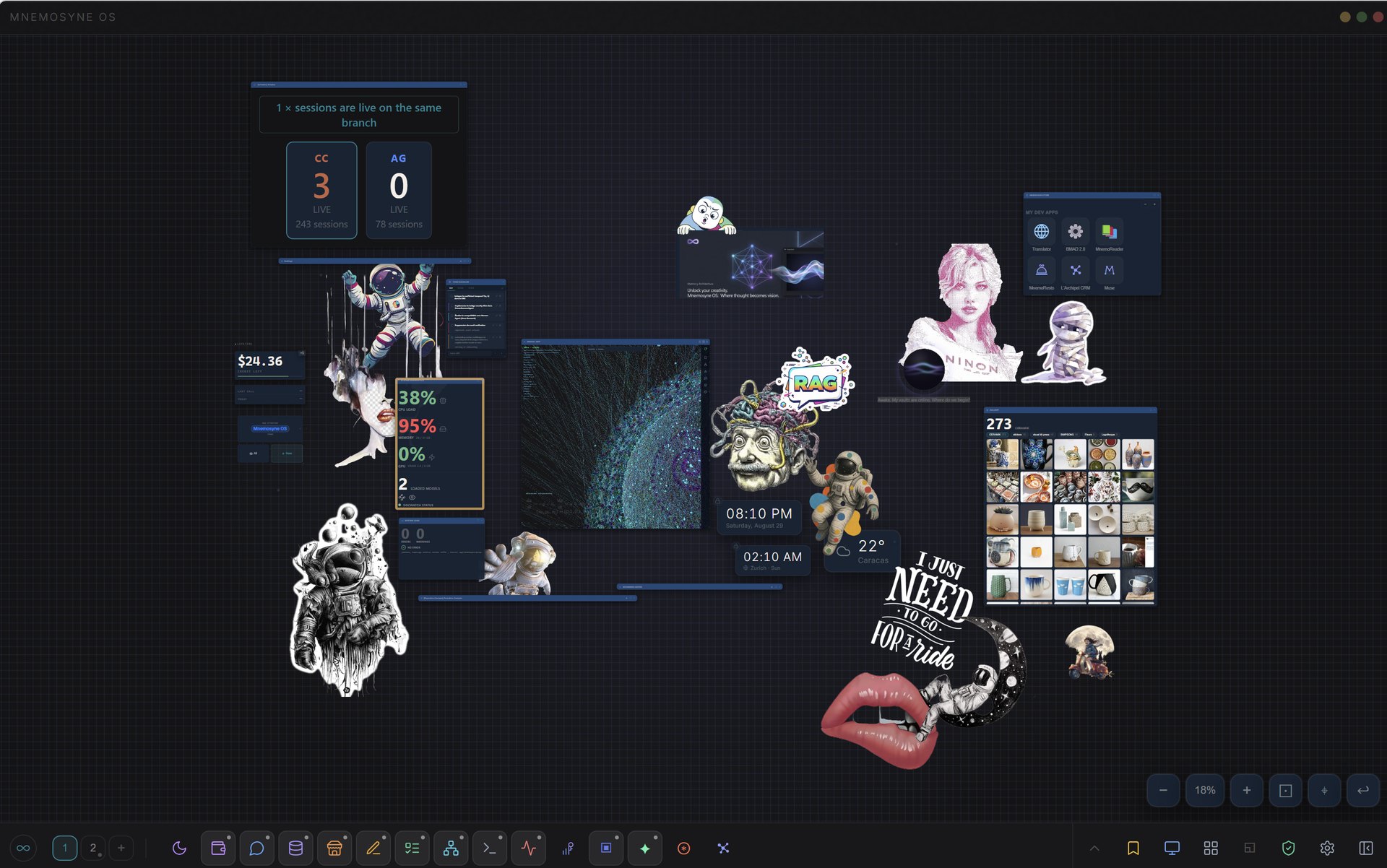
The clip for this page is being recorded. Everything described below is in your build today.
Held still, or endless
Out of the box the plane holds still: your widgets move inside the window and that is all. One switch changes that.
Settings → Appearance → Canvas → Unlock the canvas.
Now the plane runs past the edges of the screen. You drag the background to travel, the wheel zooms, and a widget can sit two screens away from the last one. Turn the switch back off and the view returns home, pulling every widget back where you can see it.
Moving around
- Drag the plane
Left button on the background, and the whole world slides with your hand. The cursor tells you: an open hand over the plane, a closed one while you travel. An ornament is scenery, so a drag that starts on a sticker pans too, unless that sticker is the one you are working on. The middle button, or Space held while you drag, pans from anywhere at all, over a widget included.
- Wheel to zoom
The wheel over the empty background zooms between 10% and 200%, anchored under the cursor, so the thing you were looking at stays under the pointer. Over a widget the wheel keeps scrolling that widget; over an ornament, which has nothing to scroll, it zooms. Ctrl (or Cmd) + wheel zooms from anywhere, even over a widget.
- Double-click to travel
Double-click the plane and the view flies to that point at 80%. Double-click again and it inverts: every widget you have, framed in one view. Two gestures, both ends of the workspace. A sticker under the cursor does not stop it.
- The controls, bottom right
−, the zoom percentage (click it to snap back to 100%), +, ⊡ Fit everything, and ⌖ Recenter, which only shows up once the view has actually left the origin.
From the keyboard: Ctrl+9 frames everything, Ctrl+0 brings the view home, Ctrl+= and Ctrl+- step the zoom. All four are listed in Shortcuts, and all four are quiet while the canvas is locked.
A cartridge runs in its own frame and keeps the keys and the clicks that happen over it, so the shortcuts and the drag gestures stay quiet in there. One exception: Ctrl (or Cmd) + wheel still zooms the plane from inside a cartridge. To move the view, use the controls at the bottom right, or click the plane first.
Your windows
Open a widget from the dock, from the command palette (Ctrl+K), from its shortcut, or by asking out loud. Once it is on the plane:
- Move it by its header. Buttons and fields inside the header stay clickable.
- Resize it from any edge or corner, eight directions.
- Roll it up with ▁, or by double-clicking its header. Only the header stays, which is the cheapest way to park something without closing it.
- Maximize it with ⛶. It fills the plane and the dock folds away. This one is deliberately forgotten on reopen: a widget never comes back maximized.
- Close it with ×.
Click anywhere in a window to bring it to the front. The front one wears the accent border, so you always know which window your keyboard is talking to. Windows are free to overlap: there is no grid to obey and nothing pushes anything else around.
Edges are magnetic. Drag a widget within a few pixels of another one, or of the edge of the view, and it snaps flush while a guide line shows you the alignment it found. Reopen a widget later and it comes back at the size you last gave it.
Organize in grid
Ctrl+G, or the button in the dock's tools group, takes every visible widget and lays them out as a square-ish grid in the view you are looking at. It moves them and resizes them, so it is the fast way out of a workspace you have let sprawl. Closed widgets are left alone.
What the plane remembers
Position, size, open or closed, stacking order, plus the pan and the zoom themselves. Saved every minute and again when you quit, restored at the next launch.
- Per display. Each screen carries its own layout, and the dock has a display picker to move between them.
- Layout Presets, in the dock's tools group: save the arrangement you are in under a name, load it back later. Useful when writing, reading and building each want a different set of windows.
Ornaments
The plane holds more than widgets. A clock, extra clocks for other timezones, weather, photo frames, stickers: light things pinned to the world, sitting under your windows and travelling with the view. Click one to select it, and only then does it follow your hand: that is what keeps a plane covered in stickers draggable. Once it is selected, move it, scale it, rotate it, or freeze it in place when it is where you want it. They live in Settings → Appearance → Canvas.
Cut a subject out, on your own machine
Right-click a sticker or a photo frame and pick Remove background. The subject is cut out locally, by a model that downloads on first use and never sends the picture anywhere. The original file is kept, so Restore background is one click away.
The same cut-out feeds three more one-click edits on the menu: Crop to the subject, Blur the background, and Sticker outline. Nothing is generated by any of them, every pixel comes from your own image.
Two things worth knowing: still images only (an animated or vector sticker cannot be cut out), and the quality is yours to pick in Settings → Images, between Standard (224 MB, a few seconds) and High quality (973 MB, the best edges for photos). Small images always use Standard, because at that size the two produce the same mask.
Dropping things on it
The empty plane is also a door into memory. Paste a screenshot on it, or drag a file from your browser onto it, and the vault picker opens. Pasting inside a chat keeps its own meaning: an attachment for that conversation. The whole rule is in web capture.