OCR for scanned documents
A PDF is not always text. A scanned book, a notarial deed, an old archive, a photographed page: those are pictures of text, and every tool that reads the "text layer" of a PDF finds nothing in them.
Text-based PDFs already work without OCR. You install an engine for one reason: to read the scans and the images.
Two engines, one job
Settings → OCR. Pick one, install it once, and it runs on your machine like everything else here.
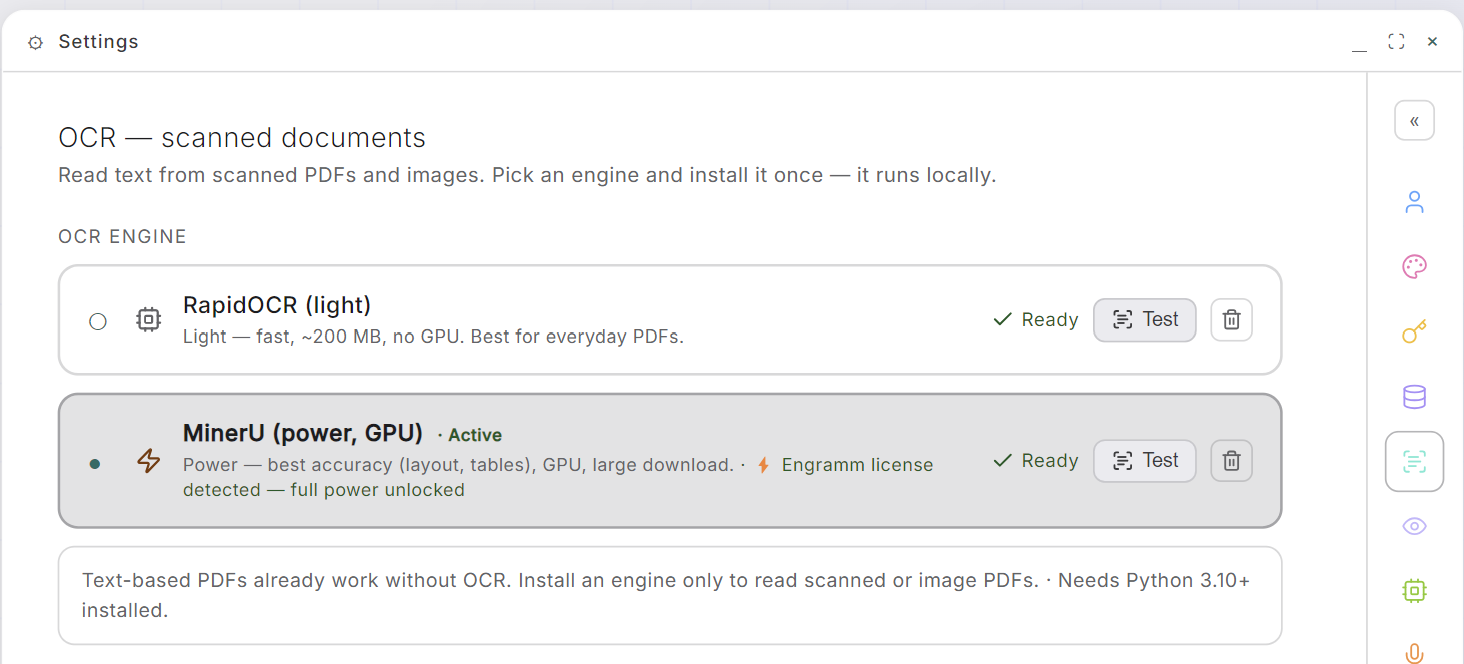
| Engine | Weight | Needs | Best for |
|---|---|---|---|
| RapidOCR (light) | ~200 MB | no GPU | everyday PDFs, fast and free |
| MinerU (power) | large download | a GPU · an Engramm licence | layout, tables and formulas coming back intact |
Every row carries its own state and its own controls: Install, then Ready, a Test button that runs the engine on a document and shows you what it actually read, and a Remove that takes the whole environment back off your disk.
One prerequisite the app cannot install for you, written on the page: Python 3.10+ must exist on the machine.
The install actually finishes installing
Installing an engine is not one download but a chain, and the page names the stage it is on: preparing environment · installing dependencies · downloading GPU runtime · installing OCR engine · downloading OCR models · finalizing.
That last-but-one stage exists because of a real trap. MinerU used to fetch its detection models lazily, on the first scanned PDF you fed it, which turned an ordinary Tuesday afternoon into a ten-minute wait with no explanation. The models are now pulled during the install, so Ready means ready.
Without an engine, a scan stays invisible (on purpose)
The app deliberately changed its mind about this one.
A scanned PDF in a watched folder is not indexed at all: no chronicle, no vector, nothing that can be retrieved. It is registered as pending, and the OCR page counts them out loud:
N scanned PDF(s) in your vaults are NOT indexed — they have no text layer and no engine to read them. They will be read automatically as soon as one is installed.
The earlier version stored a placeholder findable by its filename. That looks like success and behaves like a lie: a memory shaped like a file name gets retrieved for questions it cannot answer, and the answer comes back confident and empty. Refusing to index is one side of a real trade-off, and its price is that your document stays invisible until OCR arrives.
And when it arrives, you don't go hunting. Installing an engine re-reads every pending file automatically, and the count drops to zero.
How it decides, in the chat and the reader
- A PDF: the text layer is read first. Under 16 characters of real
text, it is a scan, and OCR takes over. Page markers like
-- 3 of 516 --are stripped before that count, because they used to make a 516-page scan look like a text PDF, and the reader dutifully read the page numbers aloud. - An image (PNG, JPG, WEBP, BMP, TIFF) goes straight to OCR.
- No engine installed: you get a sentence telling you so.
A scanned document is read in windows of 20 pages rather than in one endless call. The header shows real progress, and the engine comes back between windows instead of being held for an hour. That matters because the engine serves one request at a time: before the windows, a single long OCR froze every other request behind it.
How far it reads depends on who asked. A document attached in the chat stops at 60 pages, because that path caps its text anyway. A book imported in MnemoReader is read to its last page, bounded at 2000 so a corrupt file still terminates. A PDF that already has a text layer has no cap at all.
Deep OCR, for when the text layer lies
Some scans arrive with an embedded text layer that is already bad OCR, done years ago by whoever digitized the book. It passes the 16-character test, so nothing falls back, and the text is garbage.
MnemoReader has the button for that case: Deep OCR, re-OCR every page properly (slow, higher quality than an embedded text layer). It ignores the embedded text entirely and re-reads the page images.
Once a scan is read, it is text like any other. It flows into DocWatch and your vaults, gets vectorized, and answers questions like a note you typed yourself.